Voice input
You can dictate a prompt instead of typing it, in any language the chosen provider understands. Voice input works in every Composer: New Task and each Task's follow-up prompt.
Choose how speech becomes text
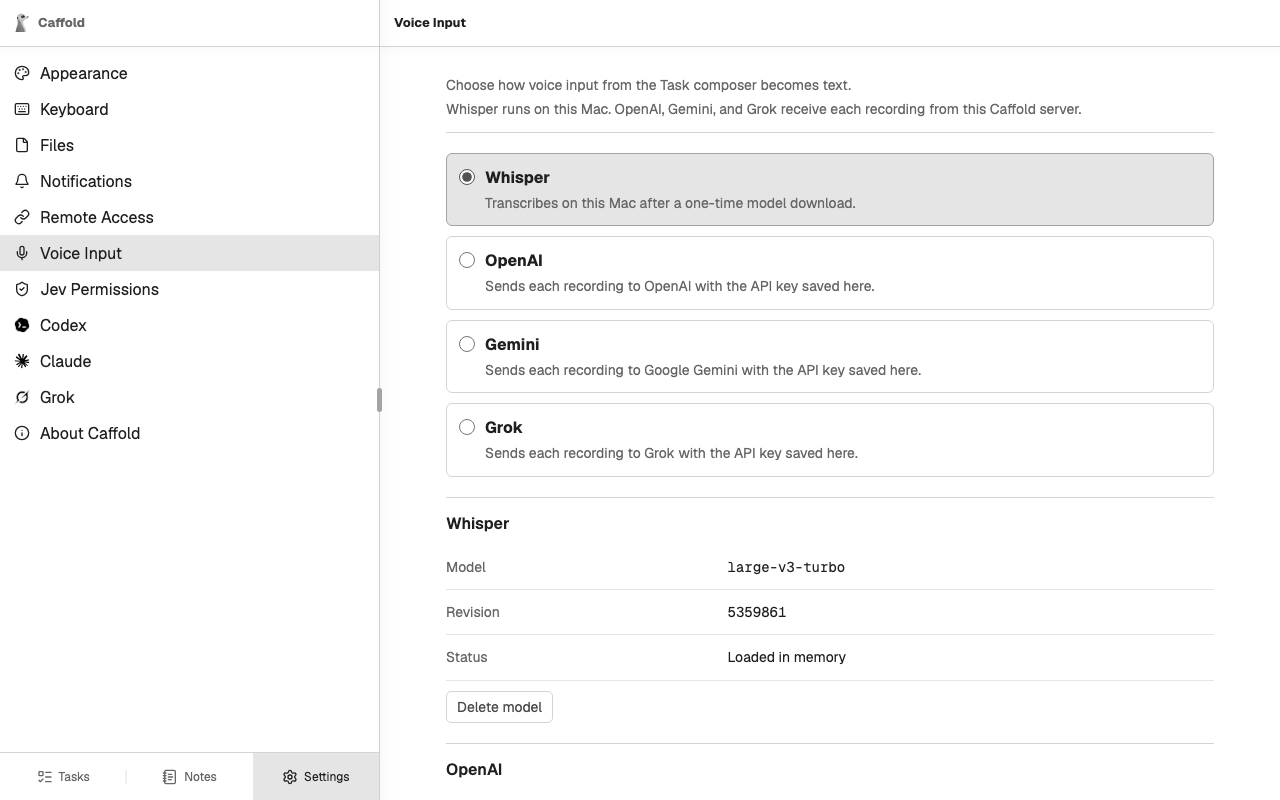
Open Settings → Voice Input and choose a provider:
- Whisper transcribes on the Mac. Choose Download to fetch its model, about 1.5 GiB. The download continues on the Mac after you close the page, and Caffold checks the model before using it. Cancel download stops a download in progress, and Delete model removes the model.
- OpenAI, Gemini, and Grok transcribe with your own API key from that provider. Enter it and choose Save key. The page then shows only whether a key is saved; Remove key deletes it.
Whisper is the provider until you choose another.
Dictate a prompt
- Choose Start voice input in the Composer and allow the microphone when the browser asks. A timer and a level meter show that it is recording.
- Speak.
- Finish in one of two ways:
- Stop recording transcribes the recording into the prompt, where you can edit it before sending;
- the send button, which becomes Finish voice input and send while recording, transcribes and sends in one step.
Cancel voice input discards the recording. When the chosen provider is not ready, the voice button reads Set up voice input and opens Settings → Voice Input instead.
Where recordings go
The browser sends each recording to the Mac. With Whisper it stays there; with OpenAI, Gemini, or Grok, the Mac forwards it to that provider. Caffold never stores recordings. Remote devices use the same private address as the rest of Caffold, so dictating from a phone needs nothing extra.