Settings
Open Settings at the bottom of the navigation pane. What you set in Appearance, Keyboard, and Files is saved in each browser; everything else is saved on the host.
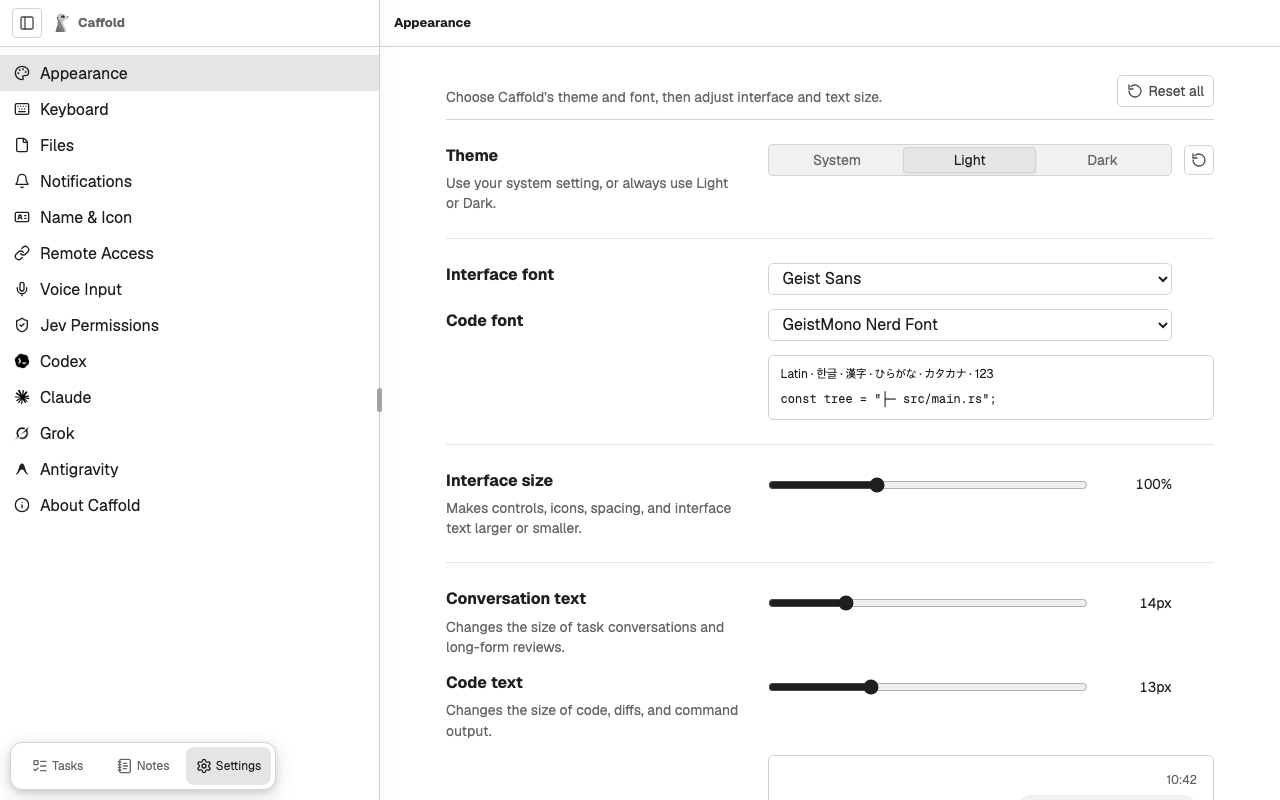
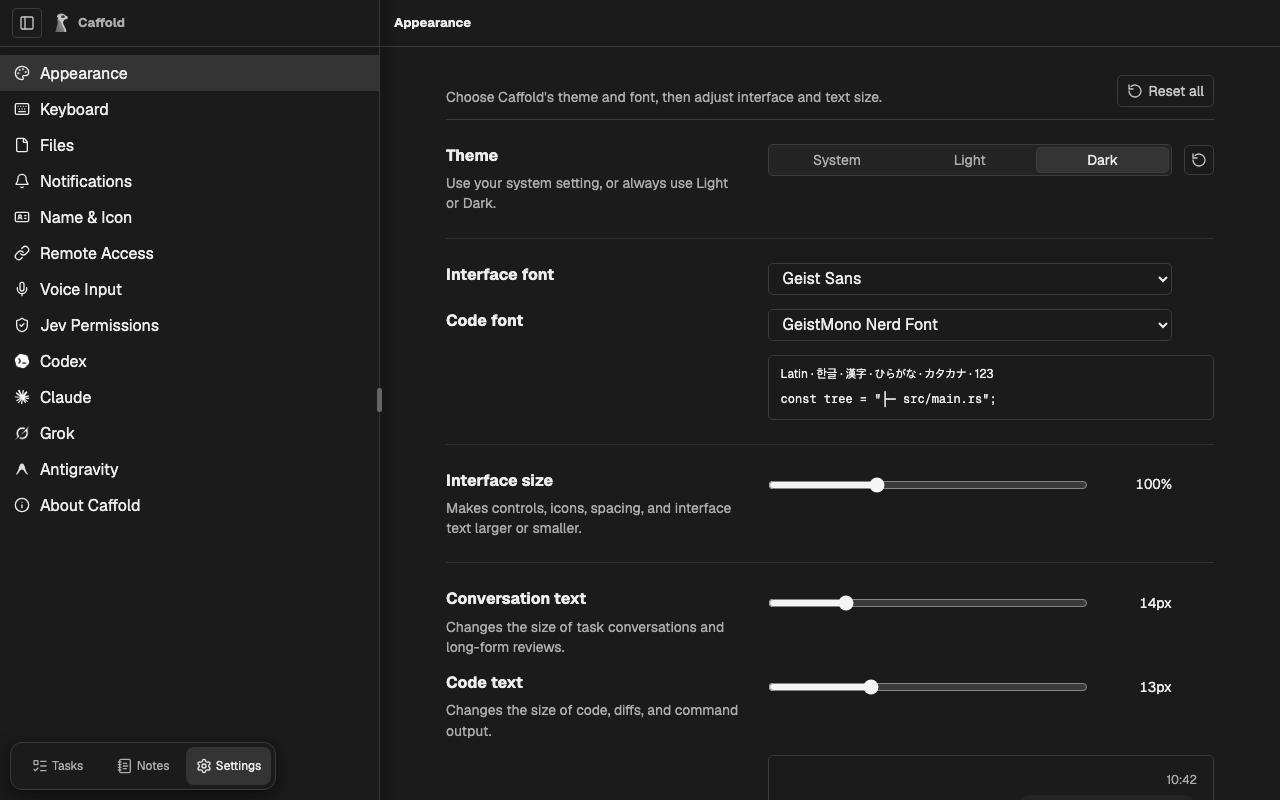
Appearance
Theme is System, Light, or Dark. Interface font and Code font choose the typefaces, with a sample below them. The code fonts under Nerd Fonts also draw the icons and Powerline symbols that terminal prompts use. Interface size scales controls and interface text, while Conversation text and Code text set the size of conversations and of code, diffs, and command output. Reset all returns to the defaults.
Keyboard
Turns Keyboard navigation on or off and lists its shortcuts. See Keyboard navigation.
Files
Orders the file trees in Working Tree, Branch, Git, and GitHub: Folders first, or All entries by name.
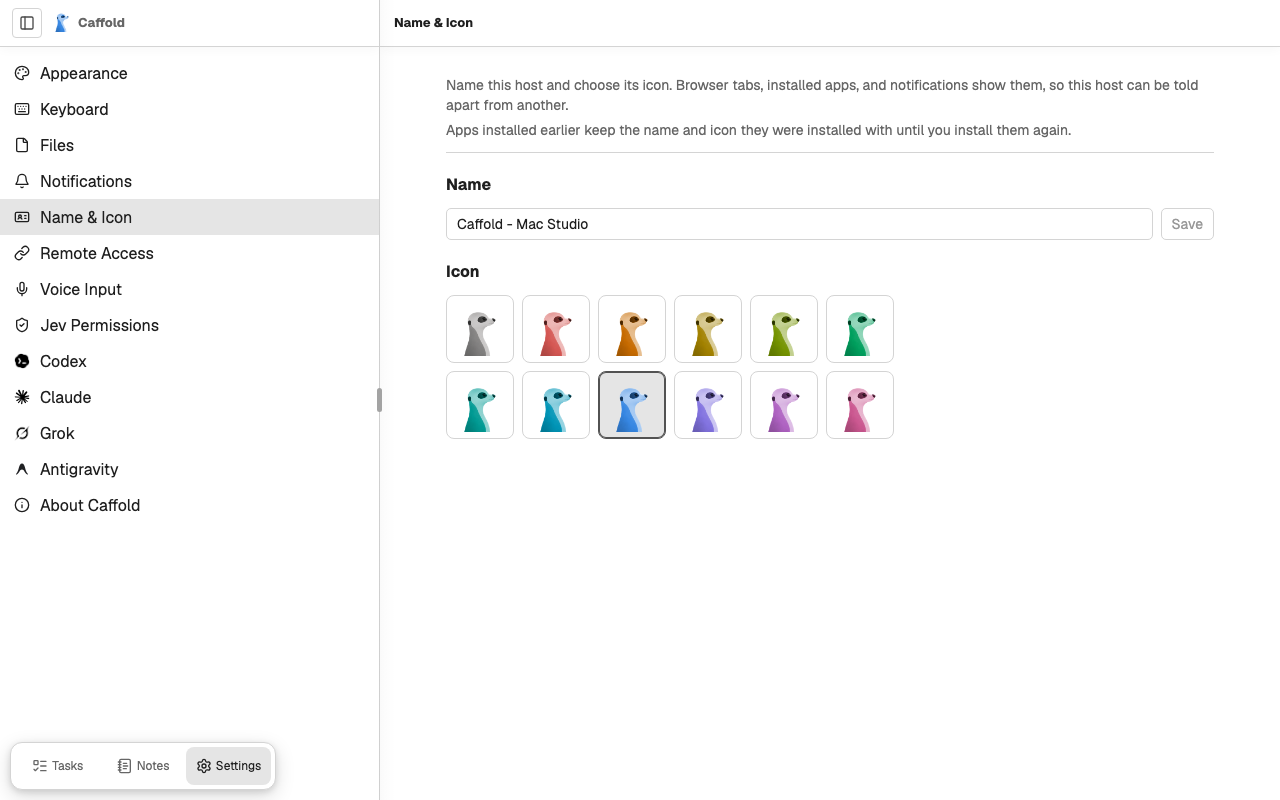
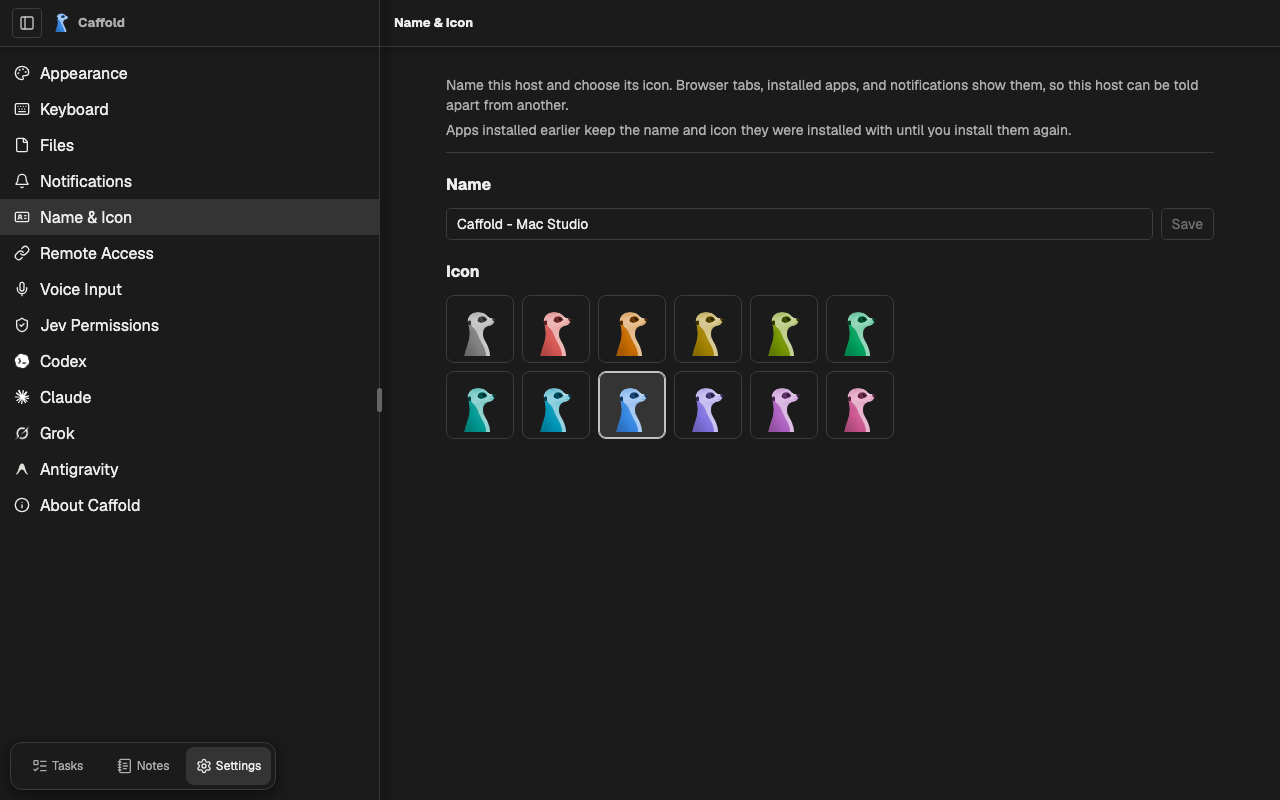
Name & Icon
Sets the Name and icon that browser tabs and installed apps show for this host. Choose a color, or Default for the gray icon.
Notifications, Remote Access, and Voice Input
- Notifications: this browser's notifications, and every browser that receives them.
- Remote Access: the private address for your other devices.
- Voice Input: how dictation becomes text.
Jev Permissions
The TypeSafe API key and extra rules for Ask Jev first. See Ask Jev first.
Codex, Claude, and Grok
The Codex, Claude, and Grok pages open with your plan's usage as the agent reports it, followed by what Caffold found: the installed version and path, the signed-in account, and the state of the process Caffold talks to. Service status opens the provider's status page, and Refresh reads everything again. Status refreshes when you enter the page or return to the window. It does not refresh periodically while you leave the page open; use Refresh to read it again. Codex's newest release is checked on entry, return, Refresh, and after a runtime restart or update.
- Codex identifies the running App-server version and shows the Installed App-server version when it differs or the running version is unknown. CLI and diagnostics lists the CLI version and path, its minimum supported version, and the App-server path. The CLI connects to and manages the App-server; their versions can differ. Codex also says how to fix an installation that is not ready, and offers Restart runtime and Update Codex. See Updates.
- Claude offers Restart runtime. See Updates.
- Grok shows Caffold's Grok leader and the connection to it.
Codex reset credits
When Codex has rate-limit reset credits, Settings → Codex lists them under the usage, each with its expiry.
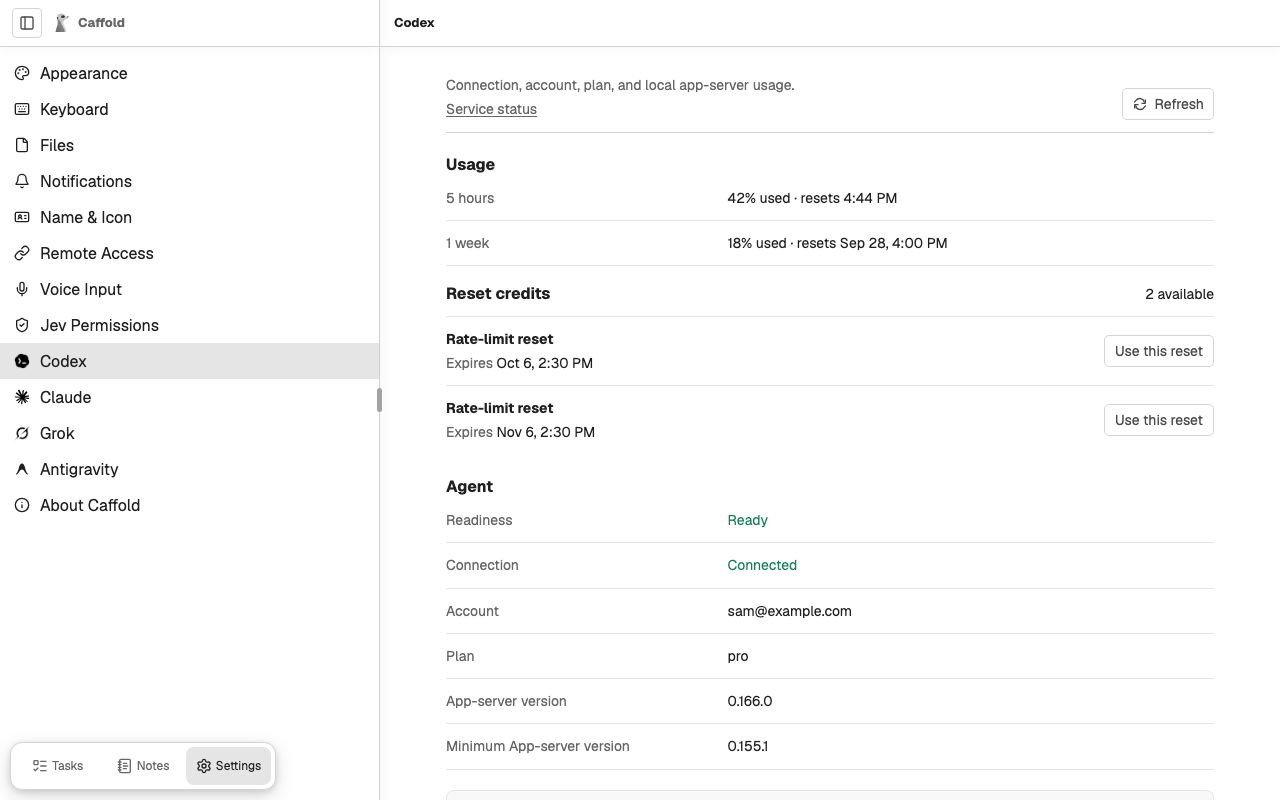
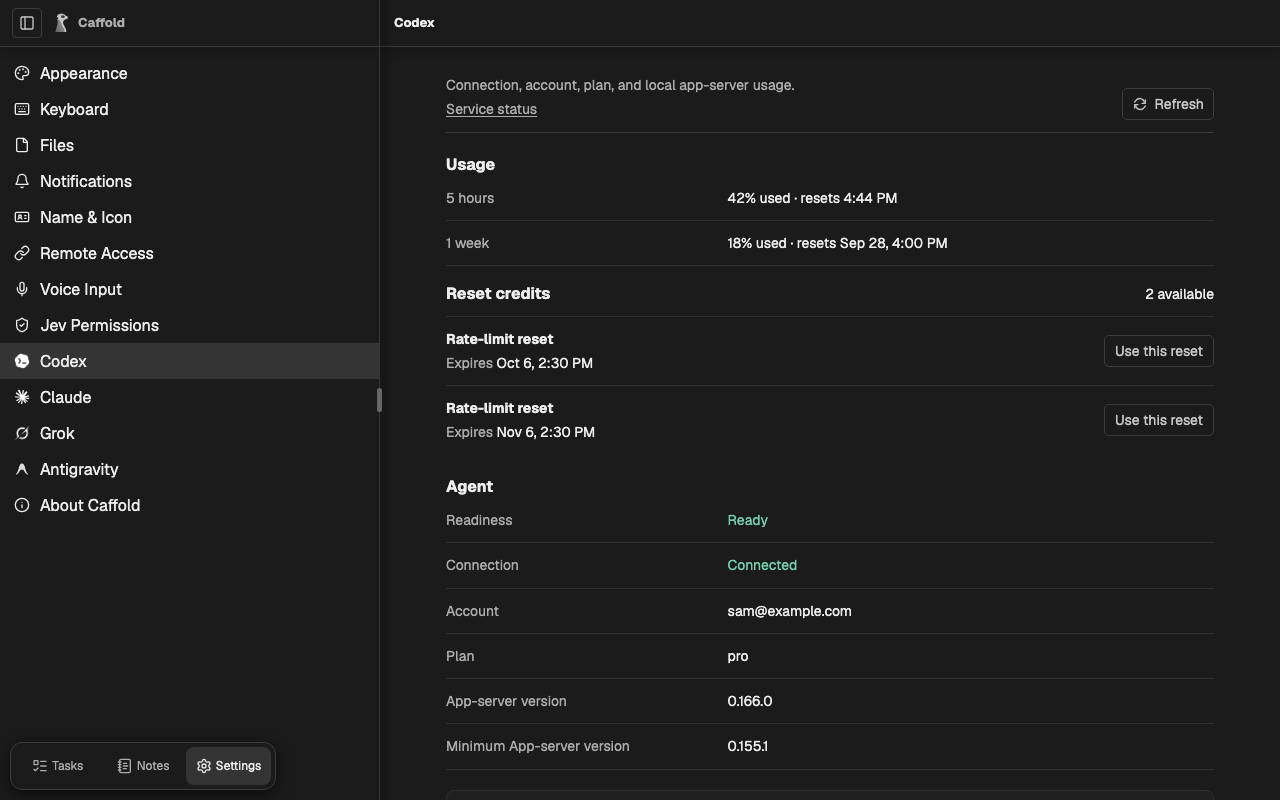
Use this reset asks Codex to use that credit to reset an eligible usage limit. It asks for confirmation first, because a used credit cannot be restored. If Codex counts credits it does not list, Let Codex choose a reset uses one of those. If Caffold cannot confirm what happened, Retry previous reset request sends the same request again, and Codex will not use a second credit for it.
Antigravity
The Antigravity page shows your Usage for each model group with its reset
time, the installed CLI, the Google account and its plan, and whether
the Models catalog is loaded. Caffold reads them when you open the page and
when you choose Refresh, without sending a prompt to a model.
Service status opens Google AI Studio's status page. If you are not signed
in, run agy on the host; see
Set up your agents.
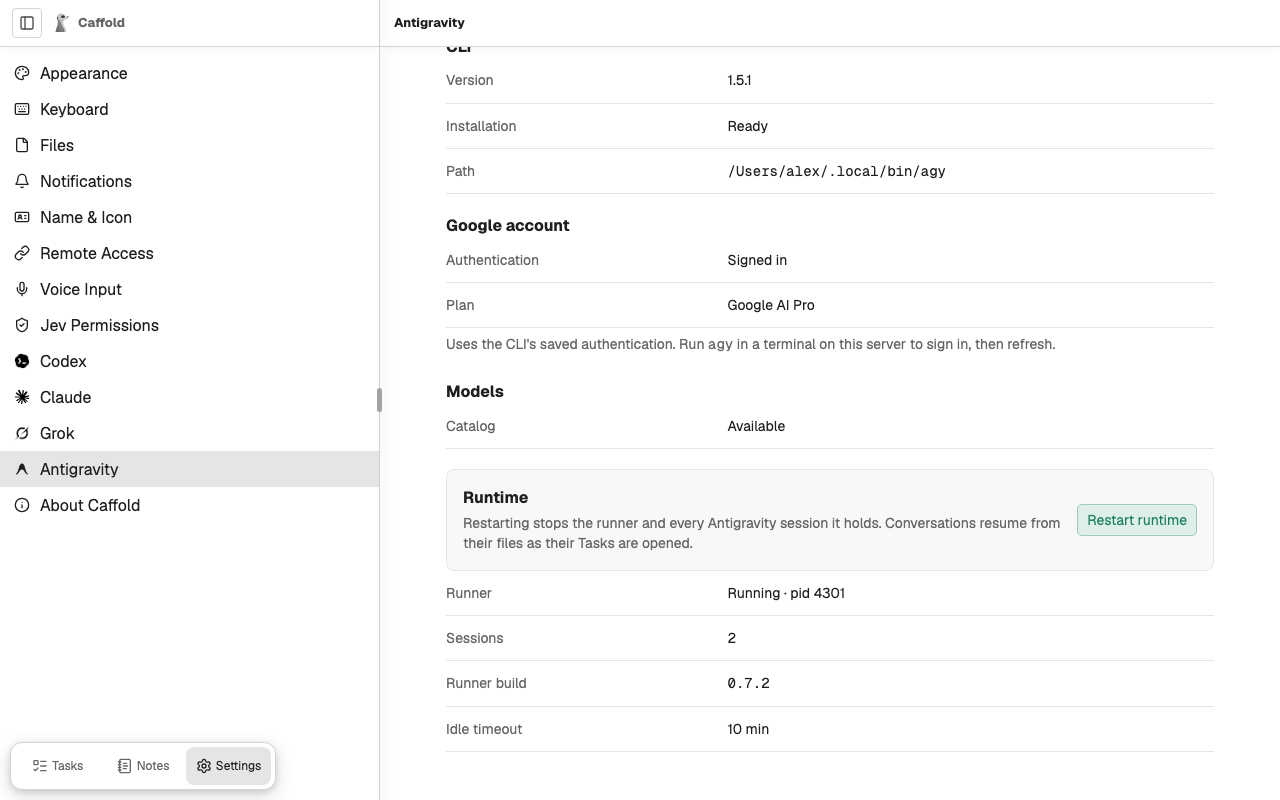
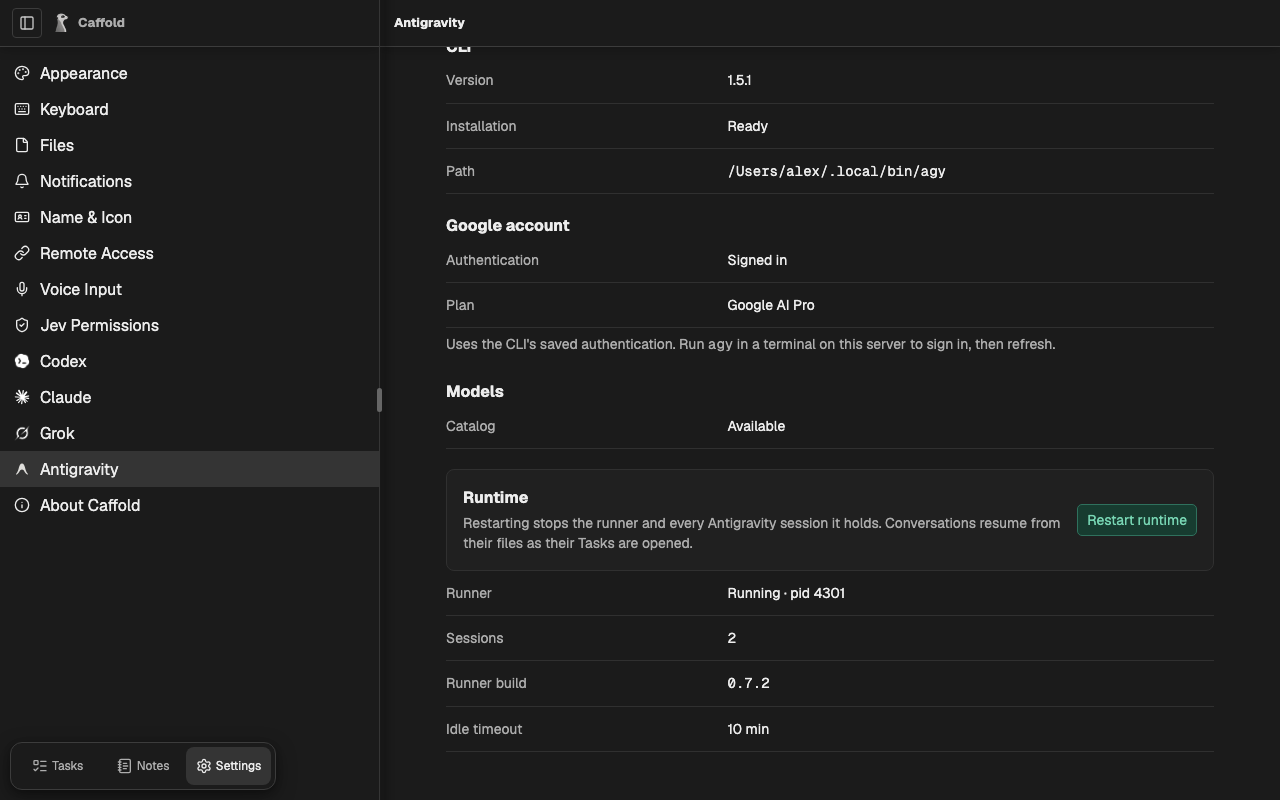
Runtime shows Caffold's Antigravity runner, the process that keeps Antigravity sessions going: whether it runs and its process ID, the Sessions it holds, its build, and its Idle timeout. Restart runtime asks for confirmation, ends running Antigravity turns, and starts the runner again from the installed Caffold. Saved conversations and the sign-in remain; open a Task to resume its conversation.
About Caffold
Updates shows the version of Caffold, the newest release, and how the last update ended. Check for Updates looks for a new release right away. When Caffold can install one, the button becomes Update Caffold, which starts an update; see Updates. The page reads its server and update status on entry and when you return to the window. These reads can use cached release information and do not repeat periodically while the page stays open.
This window shows the build this window runs. Reload to update loads a new version into this window, and Copy diagnostics copies the details to include in a bug report.