Set up your agents
Caffold works with the coding agents already installed on the Mac. Install and sign in to at least one of them; New Task offers the models of every agent Caffold can reach.
Caffold uses each agent's own sign-in. It never reads or stores your agent credentials, and it does not install the agents for you.
Codex
Caffold supports the official standalone Codex CLI 0.155.1 or newer,
installed at ~/.local/bin/codex. A Codex installed another way, for example
with Homebrew, is reported as unsupported. Install it, then run codex once
and complete sign-in:
Settings → Codex reports whether Codex is installed, signed in, and ready, and says how to fix it when it is not. A Codex problem blocks only Codex: your existing Tasks stay readable, and Claude Code and Grok keep working.
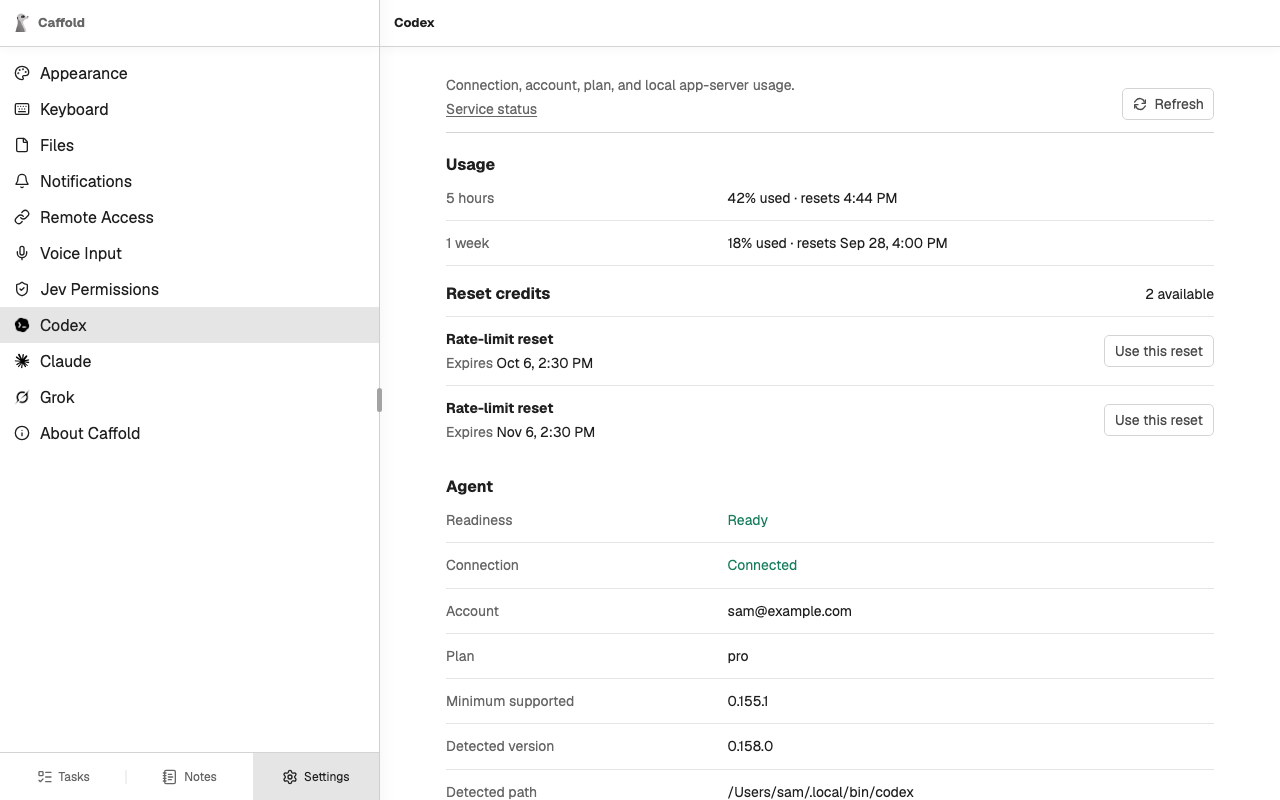
Codex's own automatic updates restart it in the middle of running work, so Caffold turns them off unless you have set them yourself in Codex's settings. Update Codex from Settings → Codex instead; see Updates.
Claude Code
Caffold supports Claude Code 2.1.259 or newer. Install it with its official
setup, run claude once, and complete sign-in. Caffold looks for claude on
its PATH, which includes ~/.local/bin, /opt/homebrew/bin, and
/usr/local/bin.
Settings → Claude shows your usage as Claude reports it, the version and path Caffold found, the signed-in account and plan, and the state of Caffold's runner, a small process that keeps Claude Code sessions going while the Caffold server restarts. When a Claude operation cannot run, the Task shows Claude's own error.
Grok
Caffold supports the Grok CLI 1.0.30 or newer. Install it with its official
setup, run grok once, and complete sign-in. Caffold looks for grok on its
PATH and at ~/.grok/bin/grok and ~/.local/bin/grok.
The first time Caffold needs Grok, it starts a Grok background process of its own, which Settings → Grok shows as its Leader. The leader keeps Grok turns running while the Caffold server restarts, and it stays running after Caffold quits. Settings → Grok also shows your usage, the version and path Caffold found, and the signed-in account.
Next, run your first Task.