Use other devices
A phone, a tablet, or another computer opens the same Caffold as the Mac: the same Tasks, conversations, and approvals. It reaches the Mac through a private HTTPS address that Tailscale provides, which only devices signed in to your tailnet can open.
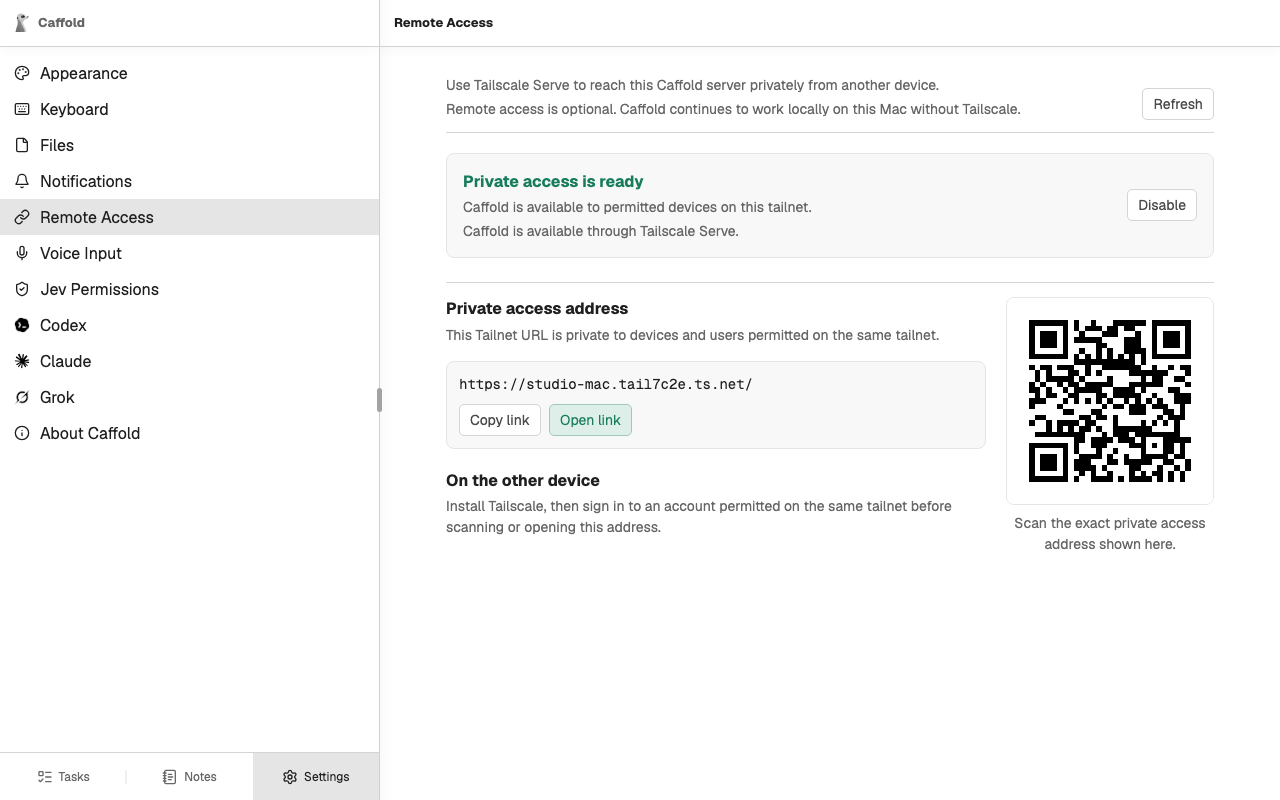
Turn on private access
- Install Tailscale on the Mac and connect it to your tailnet.
- On the Mac, open Caffold and go to Settings → Remote Access. On other devices this page is read-only.
- Choose Enable.
When the page reports Private access is ready, it shows the private address with Copy link, Open link, and a QR code for it.
Open Caffold on another device
- Install Tailscale on the device and sign in to an account permitted on the same tailnet.
- Scan the QR code, or open the copied address. On another device, always use
this address:
127.0.0.1on a phone points at the phone, not at the Mac. - To keep Caffold on the home screen, install it as an app. In Safari on an iPhone or iPad, choose Share, then Add to Home Screen. In Chrome, open the browser menu and choose Add to Home screen or Install app.
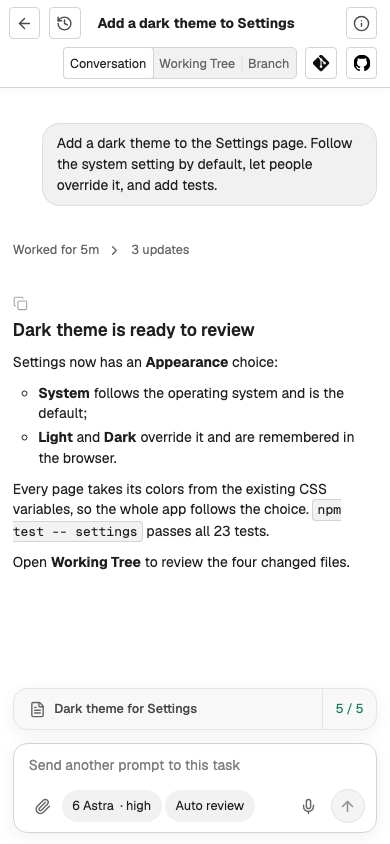
The installed app has its own window and icon, and it updates with the Mac.
You can install the app on the Mac itself as well, from
http://127.0.0.1:5178.
To be told when a turn ends while you are away, turn on Notifications on the device.
More than one Mac
If you run Caffold on more than one Mac, give each one its own Name under Server Settings... in its menu-bar app before installing it on a device, so the installed apps can be told apart. An app installed earlier keeps its old name until you install it again.