Keyboard navigation
With a keyboard, you can run the actions on the screen and scroll its areas without a pointer. The keys work whenever you are not typing in a field.
Choose an action: F
Press F and short codes appear on the actions you can take in the current place: the workspace, or the dialog or popover that is open. Type a code to run its action.
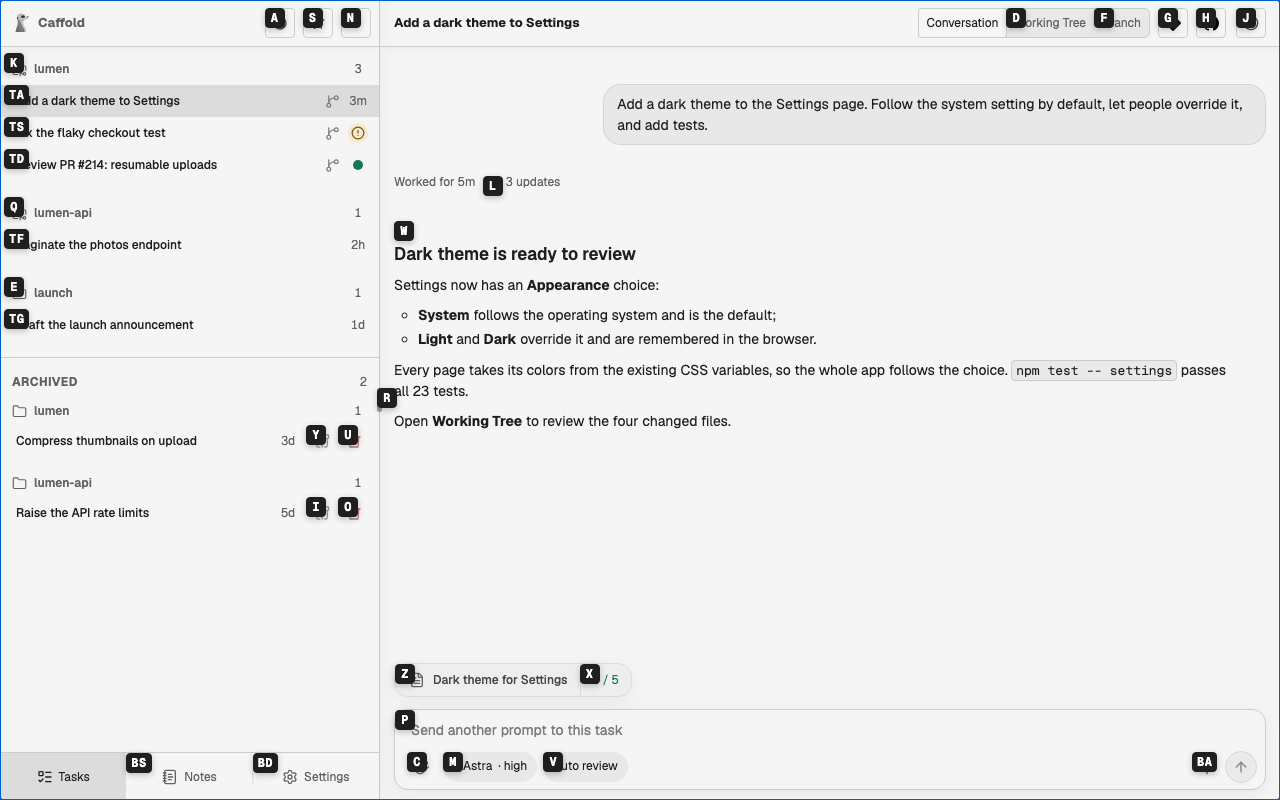
- Backspace removes the last letter you typed.
- Esc leaves without choosing.
Scroll an area: S
Press S to put codes on the areas that scroll, then type a code to choose one. In the chosen area:
| Keys | Scrolls |
|---|---|
| J / K | down or up a little |
| D / U | down or up by half the area |
| H / L | left or right |
Press S to choose another area, F to switch to actions, or Esc to stop scrolling.
Switch Tasks: T
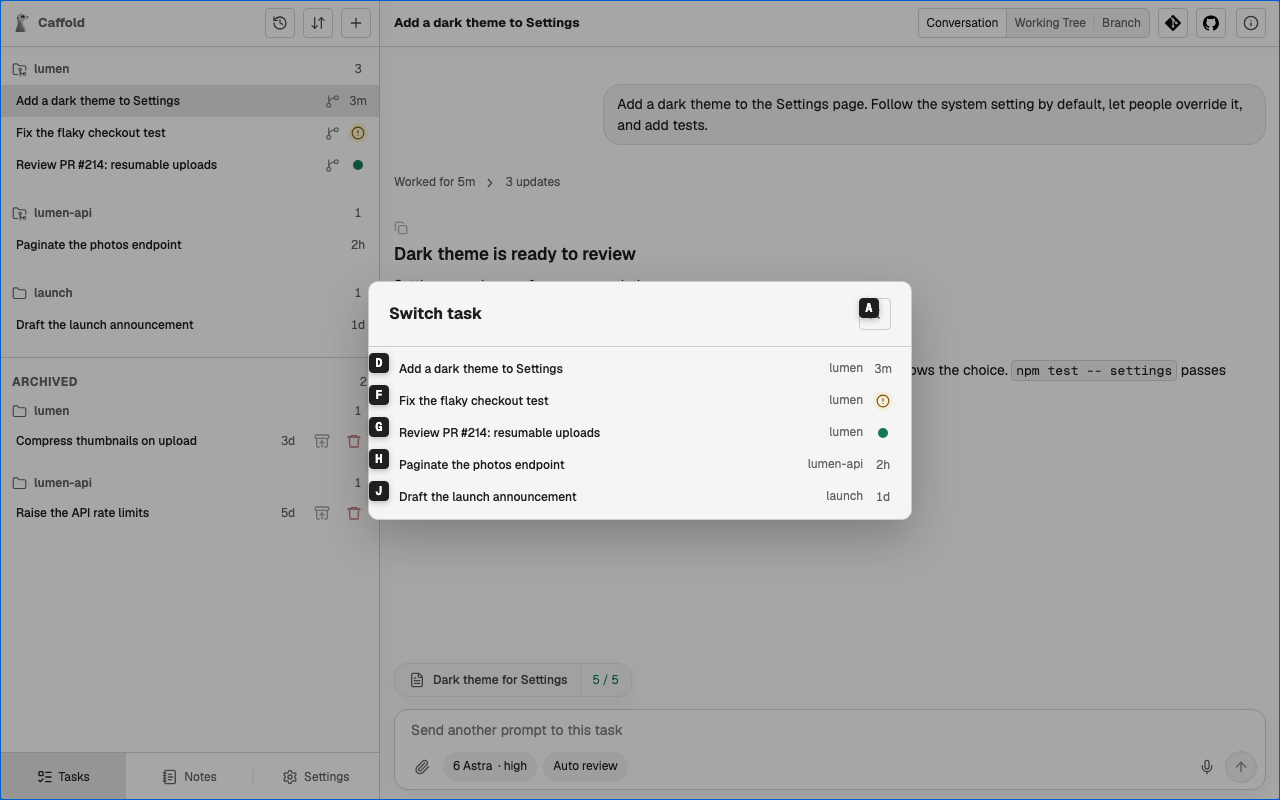
On the Tasks screen, T opens the Task Switcher with codes already on its rows. It lists your active Tasks, the most recently finished first, so the Task you just heard back from is at the top. Type a row's code, or choose a row, to open that Task. The Switch task button, the clock at the top of the Task list, opens the same list.
Leave a field: Esc
While you are typing a prompt, the keys go into the prompt. Press Esc to leave the prompt, and the keys work again.
Shortcut help: ?
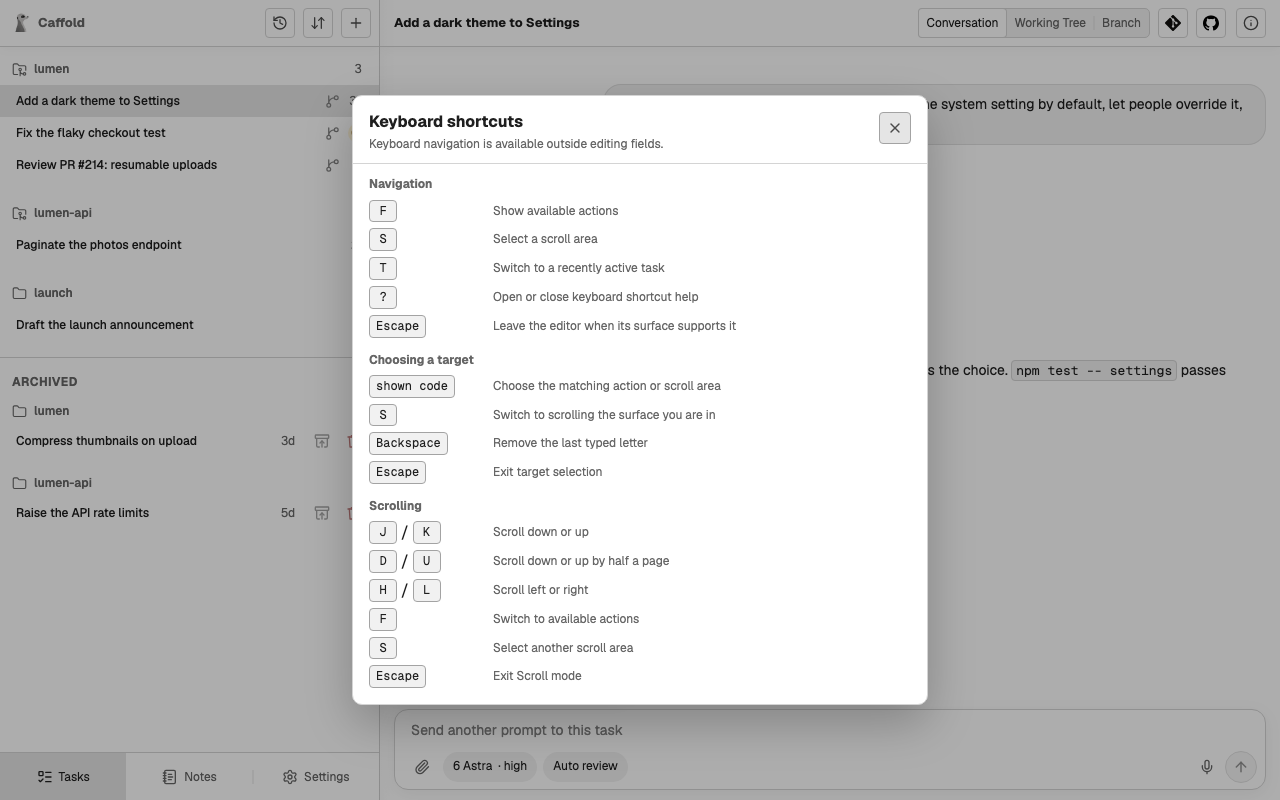
? opens the list of keyboard shortcuts from anywhere, including in the middle of choosing an action or scrolling. Press ? or Esc to close it.
Turn it off
Keys with Ctrl, Alt, or ⌘, and keys typed while an input method is composing, always go to the browser. To give every single key back to the browser as well, turn off Keyboard navigation in Settings → Keyboard, which also lists all the shortcuts.