Use the terminal
Each Task and each Section has a terminal: a shell on your Mac that starts in the Task's working directory, or in the Section's directory. Use it to check the agent's work yourself, run a command, or look around the files.
Open and leave the terminal
Choose the terminal button in the Task's header, left of Task details, or press ⌘+J or Ctrl+`. The terminal takes the place of what the Task was showing and, on a wide screen, of the Task list too, so it has the whole width. The first time, Caffold starts your login shell.
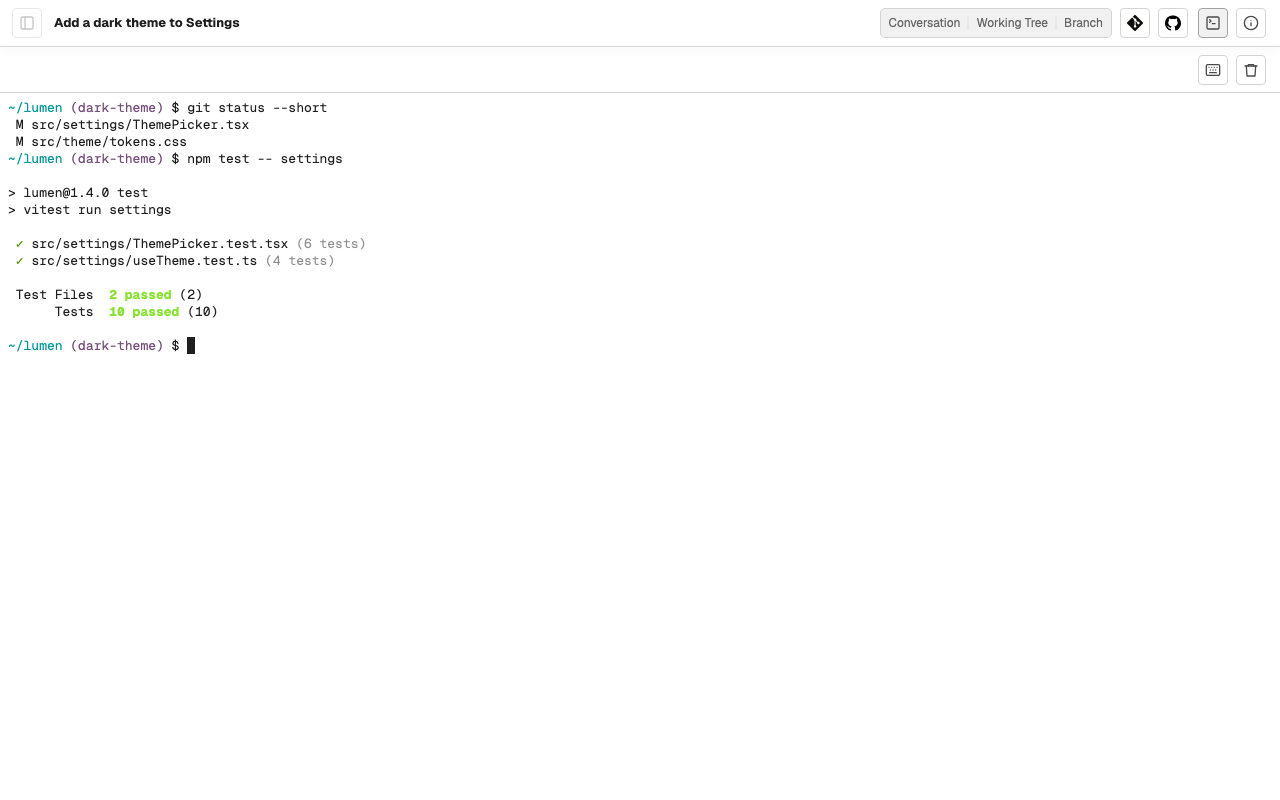
Choose the button or press the key again to go back to where you were. On a Section, the terminal button is the last one in the header.
Both keys work while you type and when keyboard navigation is off. Ctrl+` is for keyboards without ⌘.
Keep it running
The terminal keeps running on your Mac when you close the browser, change Tasks, or put your phone away. Open it again, from the same device or another, and it shows the same shell and screen, including what a running command printed in the meantime.
A terminal shows on one screen at a time. Opening it on another device moves it there, and the screen that had it says This terminal is open on another screen with Open here to take it back. A page you reload or come back to shows the terminal only while no other screen has it. The page's own connection, lost while the network dropped or the device slept, does not count as another screen.
Type into it
Everything you type goes to the shell, including Esc, so programs such as editors get it. Leave the terminal with ⌘+J or Ctrl+`. To reach the buttons above the terminal from the keyboard, press ⇧+⌘+F or Ctrl+Shift+F and type a code. To scroll back, use the mouse wheel or Shift+PageUp and Shift+PageDown; a terminal keeps its last 5,000 lines.
On a phone or tablet, a row of special keys sits under the terminal: Esc, Tab, Ctrl, and the arrows. Ctrl applies to the next key you press, so Ctrl and then C stops a command. The keyboard button above the terminal shows or hides the row, and each browser remembers your choice. While the on-screen keyboard is open, the terminal ends above it, so the prompt and the special key row stay in sight.
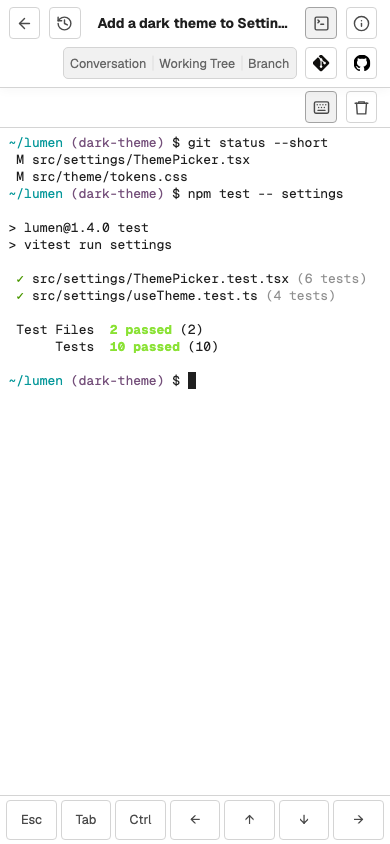
For more than one shell in a Task, run a program such as tmux inside the
terminal.
Close it
Type exit, press Ctrl+D, or choose Kill terminal,
the trash button above the terminal. The screen goes back to where you were
before you opened the terminal. A terminal screen you reach with no terminal
running, by link or after Caffold Server restarted, offers Open terminal to
start a new one.
A terminal also closes when: